If you’re a Salesforce Admin, reporting is one of the most powerful ways to drive clarity, productivity, and decisions across your organization.
But not all reports are created equal. This guide breaks down the top 10 Salesforce reports every admin should build — with real-world examples you can create and customize today.
Let’s turn your data into insight.
📘 Why Salesforce Reporting Matters for Admins
Great admins don’t just fix permission errors — they help leaders make smarter decisions. Reports reveal:
- Where leads are stuck
- Who’s not following processes
- What’s leaking revenue
- Which teams need support
With the right reports in place, you’re not just reacting — you’re leading. In the rest of this article I will show you the essential salesforce reports.
📊 Top 10 Salesforce Reports Admins Should Be Using
Each of these reports is easy to build using Salesforce’s standard report builder — and they deliver huge value right away. With that said check out the salesforce reports every admin should build.
1. Leads by Source
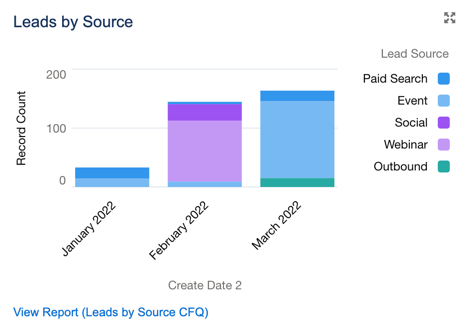
Why it matters: See where your best leads are coming from and optimize your marketing.
Filters:
- Created Date = This Month
- Grouped by Lead Source
2. Opportunity Pipeline by Stage
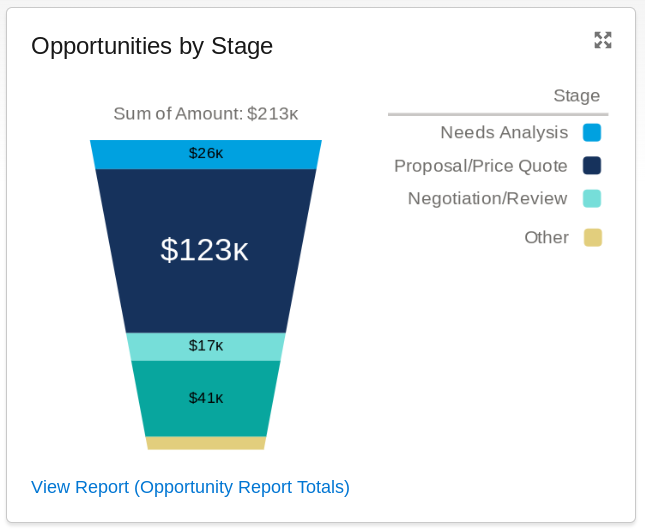
Why it matters: Give sales and execs visibility into open deals.
Filters:
- Close Date = This Quarter
- Stage != Closed Won or Closed Lost
3. Closed Won Revenue by Owner
Why it matters: Spot your top performers and revenue generators.
Filters:
- Stage = Closed Won
- Close Date = Last Quarter
4. Cases by Priority and Status
Why it matters: Monitor customer service load and bottlenecks.
Filters:
- Created Date = Last 30 Days
- Group by Priority > Status
5. Accounts with No Open Opportunities
Why it matters: Identify neglected accounts that need attention.
Filters:
- Accounts without related Opportunities
- Last Activity > 30 days ago
6. Activities by User (Last 7 Days)
Why it matters: Track follow-ups, calls, and emails by rep.
Filters:
- Activity Date = Last 7 Days
- Group by Assigned To
7. High-Value Opportunities Closing This Month
Why it matters: Help managers prioritize big-ticket deals.
Filters:
- Close Date = This Month
- Amount > $50,000
- Stage != Closed
8. Stale Leads (No Activity in 14 Days)
Why it matters: Prevent good leads from going cold.
Filters:
- Created Date = Last 60 Days
- Last Activity < Today – 14
9. Campaign ROI by Type
Why it matters: Show which campaigns are working (and which aren’t).
Filters:
- Campaign Status = Completed
- Group by Campaign Type
10. Data Quality Report (Missing Fields)
Why it matters: Keep your CRM clean by catching incomplete records.
Filters:
- Accounts or Contacts
- Show records where Email/Phone = Blank
✅ Pro Tip: Schedule These Essential Salesforce Reports
Use Salesforce’s native scheduling feature to:
- Send reports to stakeholders weekly/monthly
- Ensure data is reviewed, not just built
- Automate visibility without extra admin effort
🏁 Final Thoughts on Essential Salesforce Reports
As a Salesforce admin, your reports can empower your sales, service, and marketing teams — or leave them flying blind. If you’re serious about admin reporting, I recommend building out a “report on reports” for ongoing visibility. I broke it all down in this guide: Salesforce Report on Reports and if you’re just getting started with Salesforce strategy, don’t miss my free guides here — packed with tips just like this.
Want to dive deeper? Start with Salesforce’s official report builder docs or try Trailhead’s Reports & Dashboards module to get hands-on.
Salesforce Reports FAQs
❓What are the most important Salesforce reports for admins?
Key reports include pipeline visibility, lead activity, support cases, campaign ROI, and stale opportunities.
❓How often should I review Salesforce reports?
Weekly or monthly depending on the report type. Use Salesforce’s report scheduler to automate this.
❓Do I need Salesforce Enterprise edition to build these reports?
Most of these reports can be built in Salesforce Professional and Enterprise editions using standard report types.
❓Can I use dashboards with these reports?
Yes! Combine these into dashboards for better visualization and executive summaries.
❓What if my users don’t update data properly?
Add a “data quality” report to flag missing values, and review during team meetings to reinforce usage.
